Product updates
A Practical Studio for Futures Backtesting
- Category
- Product updates
- Published
- Author
- Alltra Team
Replay historical CME markets, test decisions in a simulated environment, and turn every practice session into something you can review.
A product-focused guide to the tools, workflow, and practical value of Alltra Optimizer.
What Is Alltra Optimizer?
Alltra Optimizer is a browser-based backtesting app built for futures traders who want to examine strategies against historical market conditions. It brings market replay, simulated order execution, prop-firm evaluation practice, multi-chart analysis, custom indicators, and session analytics into one workspace.
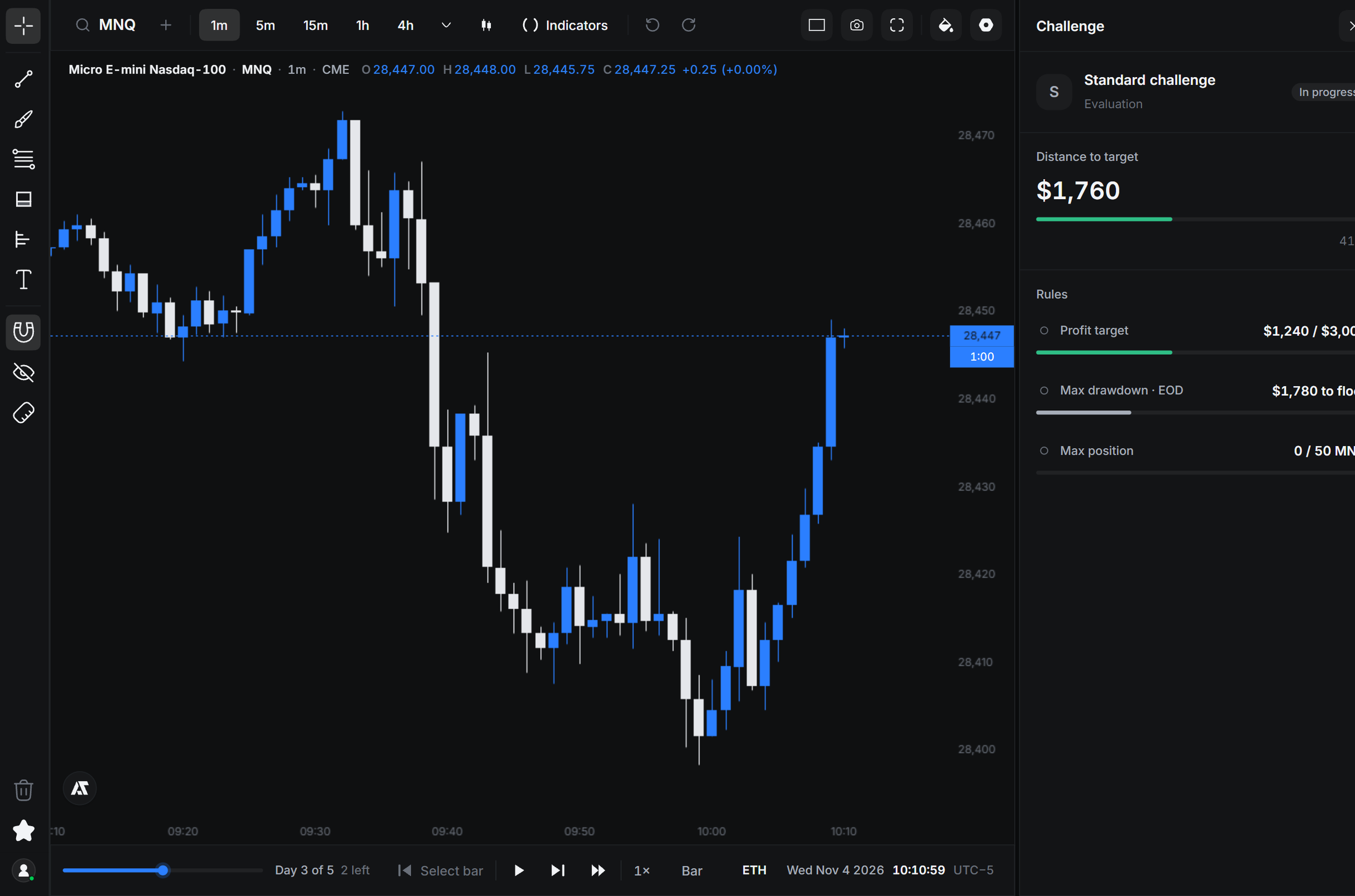
Rather than relying only on static charts or remembered market moves, traders can work through historical price action one bar at a time. The next part of the chart remains hidden during replay, allowing each decision to be made with the information that would have been available at that moment.
The product is presented as free to use, with no subscription, trial countdown, payment card, or installation required. Backtest sessions and their associated records are saved to the user's account.
Replay Historical Futures Markets
Historical replay is the foundation of the Optimizer workflow. A trader selects a market and date, starts playback, and watches the chart advance bar by bar. This creates a structured environment for testing entries, exits, stop placement, targets, and trade management without seeing future price action in advance.
CME history reaching back to 2010
The platform's historical dataset covers 58 CME Globex futures contracts, with history beginning in June 2010 for contracts that were listed at that time. Instruments are available in one-minute and one-second bars, and replay advances at the finest one-second step.
A contract introduced after 2010 begins at its own listing date. Each trading day uses the front contract for that day, and prices are not back-adjusted. As a result, a chart spanning a contract roll can show the price gap associated with that roll rather than smoothing it away. The newest 24 hours are not immediately available; a day enters the historical record once it is a day old.
A more deliberate way to test decisions
During a session, the trader can place simulated orders and adjust stops and targets directly on the chart. Fills are simulated against the replayed historical bars. This makes it possible to examine how a plan behaves as price develops, instead of judging a setup only after the full move is visible.
Practice Without Putting Capital at Risk
Alltra Optimizer is designed for practice, not live execution. Orders placed in the app are simulated on historical bars. They are not sent to a broker, and they do not affect a live trading account.
This separation gives traders room to test ideas, make mistakes, and repeat a scenario without exposing trading capital. It also keeps practice activity distinct from actual broker-recorded performance.
Review the cost assumptions
Contract fees can be set using a standard rate, a firm's published rate, or a custom figure. Choosing assumptions that resemble the trader's real trading conditions can make the resulting backtest more useful. Fees and other execution assumptions should be reviewed before drawing conclusions from a session.
Prepare for a Prop-Firm Evaluation
Prop mode lets traders rehearse an evaluation using a defined set of challenge rules. Instead of tracking only whether a strategy reaches a profit target, the session can show how each trade affects the trader's position against the evaluation requirements.
Rules that shape the challenge
Depending on the selected evaluation, the rule set can include a profit target, maximum drawdown, daily loss limit, minimum trading days, consistency requirements, and payout rules for funded accounts.
Choose a preset or configure your own
Traders can begin with a standard tier, use published rule presets for Apex Trader Funding, Lucid Trading, Topstep, MyFundedFutures, Take Profit Trader, Tradeify, and FundedNext, or create a rule set of their own.
Prop-firm terms can change. Always confirm the current rules directly with the firm before purchasing or attempting an evaluation. A practice result is a rehearsal under selected assumptions, not a promise of passing a live challenge.
Analyze the Market with Multi-Chart Layouts
Some strategies depend on seeing more than one timeframe or market view at once. Alltra Optimizer supports up to four synchronized charts and offers sixteen layouts, giving traders room to arrange their workspace around the way they analyze price.
A multi-chart setup can help compare a broader market view with a more detailed entry view, or keep related instruments visible during the same replay. On a computer, traders can use layouts with several charts open. On a phone, the experience is adapted for touch with a single chart and replay controls docked along the bottom.
Build Indicators Around Your Method
Alltra Scripts gives traders a way to create custom indicators that draw directly on the chart. A library of examples provides a starting point for learning, adapting, or building an indicator that reflects a particular trading method.
Saved scripts appear in the chart's Indicators menu alongside built-in indicators and remain associated with the user's account. This lets traders keep their analytical tools close to the replay workflow rather than switching between separate applications.
Turn Every Session into Reviewable Data
A backtest is more valuable when its results can be examined after the replay ends. Alltra Optimizer keeps the trades from each session and makes their outcomes available for review.
Trade-level detail
Each backtest trade is retained with metrics including maximum favorable excursion (MFE) and maximum adverse excursion (MAE). These measurements help describe how far a trade moved in the favorable and unfavorable directions while it was open. They can support a closer review of entry timing, stop placement, target selection, and trade management.
Analytics, Calendar, and Notebook
Closed trades feed the Analytics and Calendar views, while the Notebook provides a place to keep session notes. Together, these features help connect performance figures with the decisions and observations behind them.
Over time, a trader can use saved sessions and notes to compare experiments, identify recurring mistakes, and decide which parts of a strategy deserve further testing.
Saved Sessions and a Connected Workspace
Sessions, trades, chart templates, saved challenges, notebook entries, and scripts are kept on the user's Alltra account and can follow the user across devices. A few settings remain local to the device where they were created: drawings, custom timeframes, keyboard shortcuts, and killzone times.
This distinction is useful when moving between devices. Core backtesting work remains associated with the account, while certain chart and interface customizations may need to be recreated on another device.
How Alltra Optimizer Fits into a Trader's Routine
A practical routine can begin with a specific question: does a setup behave consistently in a particular market condition, or does a chosen stop distance leave enough room for normal price movement? The trader can select a historical day, replay the market without looking ahead, and execute the plan using simulated orders.
After the session, the trader can review the trades, compare MFE and MAE, inspect the overall analytics, and record observations in the Notebook. The same idea can then be tested on other dates or under a prop-firm rule set. Repeating this process creates a record of experiments rather than relying on memory or a single successful example.
The purpose is not to make every backtest profitable. It is to make the decision process visible, repeatable, and easier to evaluate.
Frequently Asked Questions
Is Alltra Optimizer free?
Yes. The product page describes Alltra Optimizer as free, with no subscription, trial countdown, or payment card required.
Does the Optimizer place live trades?
No. Orders are simulated against historical replay bars. The app does not send orders to a broker or touch a live trading account.
What historical markets are available?
The product page lists 58 CME Globex futures contracts, with history beginning in June 2010 where the contract was listed then. Data is provided in one-minute and one-second bars. Later-listed contracts begin at their listing date.
Can I test a prop-firm evaluation?
Yes. Prop mode supports standard tiers, selected firm rule presets, and custom rules. Because firms can change their requirements, verify the current terms with the firm before buying an evaluation.
Can I use my own indicators?
Yes. Alltra Scripts supports custom indicators that draw on the chart. Scripts can be saved to the account and selected alongside built-in indicators.
Can I use it on a phone?
Yes. The mobile experience is designed for touch and uses one chart with replay controls along the bottom. Multi-chart layouts are intended for computer use.
What happens to my backtest sessions?
Sessions and their trades are saved to the account, along with chart templates, saved challenges, notebook entries, and scripts. Some local chart settings, including drawings and custom timeframes, do not automatically follow across devices.
A More Structured Way to Learn from Historical Markets
Alltra Optimizer brings several parts of futures strategy development into one place: historical CME replay, simulated trading, prop-firm rule practice, synchronized chart layouts, custom indicators, and post-session analytics. Its central benefit is a repeatable environment in which traders can test decisions against historical price action and preserve the results for later review.
For traders who want to move beyond casual chart review, the Optimizer offers a practical workflow: choose a market and date, replay the session without looking ahead, execute a plan in simulation, and study what happened afterward.
Product details in this article are based on the official Alltra Optimizer product page. Features, supported data, and third-party evaluation rules may change; consult Alltra and the relevant firm for current details.